
Subscriptions can be a pain for almost everyone, and especially cancelling them. We are all sitting on subs we don't use and when we finally get the idea to cancel our unused ones, it feels like a maze.
A study by Yougov discovered that more than half of consumers have a subscription they haven't used in the past 6 months and 11% have more than 3 unused subs.
There are some nifty ways to manage and cancel your subscriptions, but luckily with apps signed up through Apple appstore it's fairly straighforward to do all in the one place.
In this guide i will walk you through how to easily cancel your subscriptions on an Iphone and regain peace of mind. I also use a neat trick to avoid free trial charges.
Cancelling your Iphone Subscriptions
Step 1: Make sure that the subscription you want to cancel is through the Apple app store/in-app subscriptions.
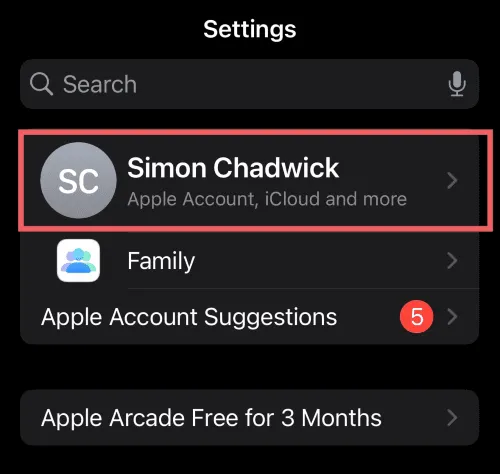
Step 2: Go to your Iphone settings
Step 3: Right at the top, click on your name

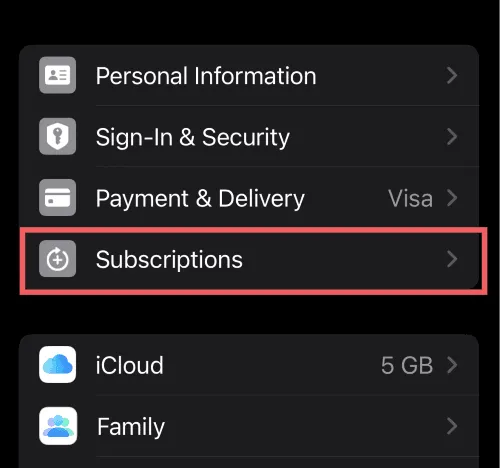
Step 4: You'll see a section that says subscriptions, press it.

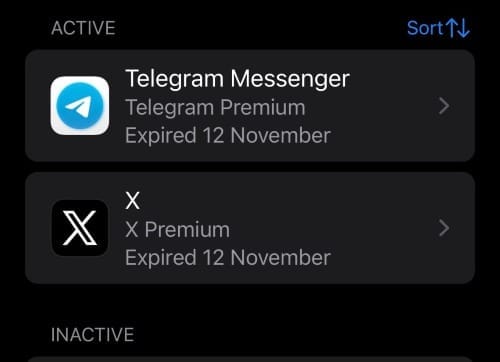
Step 5: You will see a drop down list of all your active and past subscriptions

Step 6: Click on the subscription you would like to cancel.
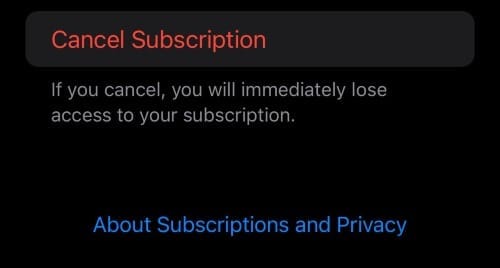
Step 7: Press the "Cancel Subscription" button

Step 8: Confirm the Cancellation
And there you go! Your subscription is cancelled. You can continue and do this for all other Apple subscriptions you would like to cancel, you can always renew/restart them again on the same page
Avoiding the Free Trial Trap
I use the exact same system to avoid unexpected free trial charges.
When you sign up for a free trial for an app on your Iphone, you can cancel the subscription and most times you will still have trial access until the end of the period.
Set a habit of immediately cancelling your subscription using the method above if you do not plan on continuing past the free trial or just as a fallback, you can always renew the subscription.
Tired of Subscription Clutter and Chaos?
We are too.
And that's why we are building Orbit, an app to help people gain visibility and control over their subscriptions.
You can discover your hidden subs, set notifications and alerts, cancel subs and in the future even dedicated virtual cards for further control.
Beta starts soon and are looking for early adopters to test and help refine the product.
Join the waitlist, Early beta users will receive special founding member privileges and early access to new features as they roll out.

Subscriptions can be a pain for almost everyone, and especially cancelling them. We are all sitting on subs we don't use and when we finally get the idea to cancel our unused ones, it feels like a maze.
A study by Yougov discovered that more than half of consumers have a subscription they haven't used in the past 6 months and 11% have more than 3 unused subs.
There are some nifty ways to manage and cancel your subscriptions, but luckily with apps signed up through Apple appstore it's fairly straighforward to do all in the one place.
In this guide i will walk you through how to easily cancel your subscriptions on an Iphone and regain peace of mind. I also use a neat trick to avoid free trial charges.
Cancelling your Iphone Subscriptions
Step 1: Make sure that the subscription you want to cancel is through the Apple app store/in-app subscriptions.
Step 2: Go to your Iphone settings
Step 3: Right at the top, click on your name

Step 4: You'll see a section that says subscriptions, press it.

Step 5: You will see a drop down list of all your active and past subscriptions

Step 6: Click on the subscription you would like to cancel.
Step 7: Press the "Cancel Subscription" button

Step 8: Confirm the Cancellation
And there you go! Your subscription is cancelled. You can continue and do this for all other Apple subscriptions you would like to cancel, you can always renew/restart them again on the same page
Avoiding the Free Trial Trap
I use the exact same system to avoid unexpected free trial charges.
When you sign up for a free trial for an app on your Iphone, you can cancel the subscription and most times you will still have trial access until the end of the period.
Set a habit of immediately cancelling your subscription using the method above if you do not plan on continuing past the free trial or just as a fallback, you can always renew the subscription.
Tired of Subscription Clutter and Chaos?
We are too.
And that's why we are building Orbit, an app to help people gain visibility and control over their subscriptions.
You can discover your hidden subs, set notifications and alerts, cancel subs and in the future even dedicated virtual cards for further control.
Beta starts soon and are looking for early adopters to test and help refine the product.
Join the waitlist, Early beta users will receive special founding member privileges and early access to new features as they roll out.

Subscriptions can be a pain for almost everyone, and especially cancelling them. We are all sitting on subs we don't use and when we finally get the idea to cancel our unused ones, it feels like a maze.
A study by Yougov discovered that more than half of consumers have a subscription they haven't used in the past 6 months and 11% have more than 3 unused subs.
There are some nifty ways to manage and cancel your subscriptions, but luckily with apps signed up through Apple appstore it's fairly straighforward to do all in the one place.
In this guide i will walk you through how to easily cancel your subscriptions on an Iphone and regain peace of mind. I also use a neat trick to avoid free trial charges.
Cancelling your Iphone Subscriptions
Step 1: Make sure that the subscription you want to cancel is through the Apple app store/in-app subscriptions.
Step 2: Go to your Iphone settings
Step 3: Right at the top, click on your name

Step 4: You'll see a section that says subscriptions, press it.

Step 5: You will see a drop down list of all your active and past subscriptions

Step 6: Click on the subscription you would like to cancel.
Step 7: Press the "Cancel Subscription" button

Step 8: Confirm the Cancellation
And there you go! Your subscription is cancelled. You can continue and do this for all other Apple subscriptions you would like to cancel, you can always renew/restart them again on the same page
Avoiding the Free Trial Trap
I use the exact same system to avoid unexpected free trial charges.
When you sign up for a free trial for an app on your Iphone, you can cancel the subscription and most times you will still have trial access until the end of the period.
Set a habit of immediately cancelling your subscription using the method above if you do not plan on continuing past the free trial or just as a fallback, you can always renew the subscription.
Tired of Subscription Clutter and Chaos?
We are too.
And that's why we are building Orbit, an app to help people gain visibility and control over their subscriptions.
You can discover your hidden subs, set notifications and alerts, cancel subs and in the future even dedicated virtual cards for further control.
Beta starts soon and are looking for early adopters to test and help refine the product.
Join the waitlist, Early beta users will receive special founding member privileges and early access to new features as they roll out.
Read More Related Articles

Subscription Overload: Why Too Many Subscriptions Are Draining Consumers and What You Can Do About It
Overwhelmed by too many subscriptions? Discover how subscription fatigue happens, hidden free-trial traps, and simple ways to cut back and save money.

Simon Chadwick

What Happened to Mint? Why Intuit Shut Down the Most Popular Budgeting App
Intuit shut Mint in March 2024. Why did this hugely popular budgeting app close down? What are the best budgeting app alternatives for former users?

Simon Chadwick

Annual Subscription Review: What to Ask Yourself Each December
Is your budget optimized for subscriptions? Our subscription review guide helps you decide which subscriptions to keep or cancel as we approach 2026.

Simon Chadwick
Read More Related Articles

Subscription Overload: Why Too Many Subscriptions Are Draining Consumers and What You Can Do About It
Overwhelmed by too many subscriptions? Discover how subscription fatigue happens, hidden free-trial traps, and simple ways to cut back and save money.

Simon Chadwick

What Happened to Mint? Why Intuit Shut Down the Most Popular Budgeting App
Intuit shut Mint in March 2024. Why did this hugely popular budgeting app close down? What are the best budgeting app alternatives for former users?

Simon Chadwick

Annual Subscription Review: What to Ask Yourself Each December
Is your budget optimized for subscriptions? Our subscription review guide helps you decide which subscriptions to keep or cancel as we approach 2026.

Simon Chadwick
Read More Related Articles

Subscription Overload: Why Too Many Subscriptions Are Draining Consumers and What You Can Do About It
Overwhelmed by too many subscriptions? Discover how subscription fatigue happens, hidden free-trial traps, and simple ways to cut back and save money.

Simon Chadwick

What Happened to Mint? Why Intuit Shut Down the Most Popular Budgeting App
Intuit shut Mint in March 2024. Why did this hugely popular budgeting app close down? What are the best budgeting app alternatives for former users?

Simon Chadwick

Annual Subscription Review: What to Ask Yourself Each December
Is your budget optimized for subscriptions? Our subscription review guide helps you decide which subscriptions to keep or cancel as we approach 2026.

Simon Chadwick
Use Orbit to track smarter, save more, and make your money work for you.