" width="320.3306884765625px"><path d="M 0 0 L 96 0 L 96 33 L 0 33 Z" fill="transparent" height="33px" id="N17xComAw" transform="translate(224.331 57.419)" width="96px"/><path d="M 91.892 29.937 C 90.546 29.937 89.363 29.723 88.341 29.295 C 87.345 28.867 86.571 28.162 86.024 27.181 C 85.476 26.2 85.202 24.866 85.202 23.179 L 85.202 15.325 L 81.949 15.325 L 81.949 10.906 L 85.202 10.906 L 85.762 5.657 L 90.434 5.657 L 90.434 10.906 L 95.331 10.906 L 95.331 15.325 L 90.434 15.325 L 90.434 23.217 C 90.434 24.048 90.608 24.626 90.958 24.954 C 91.331 25.281 91.954 25.446 92.827 25.446 L 95.293 25.446 L 95.293 29.939 L 91.892 29.939 Z M 73.205 29.881 L 73.205 10.85 L 78.438 10.85 L 78.438 29.881 Z M 75.82 8.396 C 74.874 8.396 74.1 8.119 73.503 7.566 C 72.905 6.988 72.605 6.282 72.605 5.452 C 72.605 4.621 72.905 3.891 73.503 3.338 C 74.1 2.785 74.874 2.507 75.82 2.507 C 76.766 2.507 77.539 2.785 78.137 3.338 C 78.735 3.891 79.035 4.596 79.035 5.452 C 79.035 6.308 78.735 6.988 78.137 7.566 C 77.539 8.119 76.766 8.396 75.82 8.396 Z M 60.723 30.356 C 59.75 30.356 58.89 30.231 58.144 29.979 C 57.395 29.752 56.736 29.426 56.162 28.998 C 55.589 28.57 55.103 28.079 54.704 27.526 L 54.107 29.904 L 49.472 29.904 L 49.472 2.716 L 54.704 2.716 L 54.704 13.477 C 55.277 12.596 56.051 11.865 57.022 11.287 C 58.018 10.708 59.24 10.418 60.685 10.418 C 62.404 10.418 63.938 10.859 65.284 11.74 C 66.655 12.596 67.726 13.78 68.498 15.29 C 69.295 16.775 69.694 18.487 69.694 20.425 C 69.694 22.363 69.295 24.012 68.498 25.522 C 67.726 27.032 66.667 28.216 65.321 29.072 C 63.975 29.928 62.442 30.356 60.724 30.356 Z M 59.452 25.749 C 60.4 25.749 61.247 25.522 61.994 25.069 C 62.742 24.615 63.327 23.986 63.751 23.181 C 64.174 22.376 64.386 21.457 64.386 20.425 C 64.386 19.393 64.174 18.436 63.751 17.631 C 63.327 16.826 62.742 16.197 61.994 15.743 C 61.247 15.265 60.4 15.025 59.452 15.025 C 58.504 15.025 57.619 15.265 56.872 15.743 C 56.149 16.197 55.577 16.826 55.153 17.631 C 54.73 18.411 54.518 19.33 54.518 20.387 C 54.518 21.444 54.73 22.376 55.153 23.181 C 55.577 23.986 56.149 24.615 56.872 25.069 C 57.621 25.522 58.481 25.749 59.452 25.749 Z M 34.449 29.973 L 34.449 10.942 L 39.083 10.942 L 39.569 14.454 C 40.043 13.624 40.616 12.919 41.289 12.34 C 41.962 11.762 42.746 11.308 43.644 10.98 C 44.541 10.652 45.512 10.489 46.559 10.489 L 46.559 16.077 L 44.802 16.077 C 44.055 16.077 43.357 16.166 42.709 16.342 C 42.086 16.518 41.537 16.808 41.065 17.21 C 40.616 17.587 40.268 18.117 40.018 18.797 C 39.794 19.451 39.681 20.282 39.681 21.288 L 39.681 29.973 L 34.447 29.973 Z M 15.753 0 C 7.051 0 0 7.14 0 15.944 C 0 18.083 0.289 20.207 1.172 21.989 C 1.174 21.993 1.177 21.997 1.18 22.001 C 1.989 22.849 3.085 23.042 4.177 23.157 C 4.983 23.242 5.834 23.191 6.71 23.029 C 12.312 21.992 19.007 16.445 22.568 13.16 C 22.588 13.141 22.588 13.111 22.57 13.091 C 21.993 12.468 21.643 11.631 21.643 10.714 C 21.643 9.315 22.458 8.108 23.633 7.555 C 24.088 7.34 24.585 7.229 25.087 7.229 C 25.605 7.229 26.082 7.342 26.52 7.544 C 27.707 8.094 28.531 9.306 28.531 10.714 C 28.531 10.865 28.522 11.014 28.503 11.16 C 28.373 12.199 27.79 13.094 26.96 13.638 C 26.422 13.995 25.778 14.2 25.087 14.2 C 24.465 14.2 23.881 14.033 23.377 13.74 C 23.355 13.727 23.326 13.734 23.312 13.756 C 21.215 17.233 17.527 23.002 13.709 27.336 C 13.138 27.984 12.566 28.601 11.994 29.17 C 11.395 29.769 10.788 30.266 10.21 30.8 C 10.198 30.811 10.193 30.827 10.195 30.843 C 10.198 30.859 10.208 30.873 10.223 30.88 C 11.955 31.642 13.808 31.887 15.753 31.887 C 24.455 31.887 31.554 24.747 31.554 15.944 C 31.554 7.14 24.455 0 15.753 0 Z" fill="rgb(0, 120, 229)" height="31.887096798905105px" id="a0XL_p5Lg" transform="translate(0 0)" width="95.33068099793195px"/></g></svg>)
Dec 5, 2025
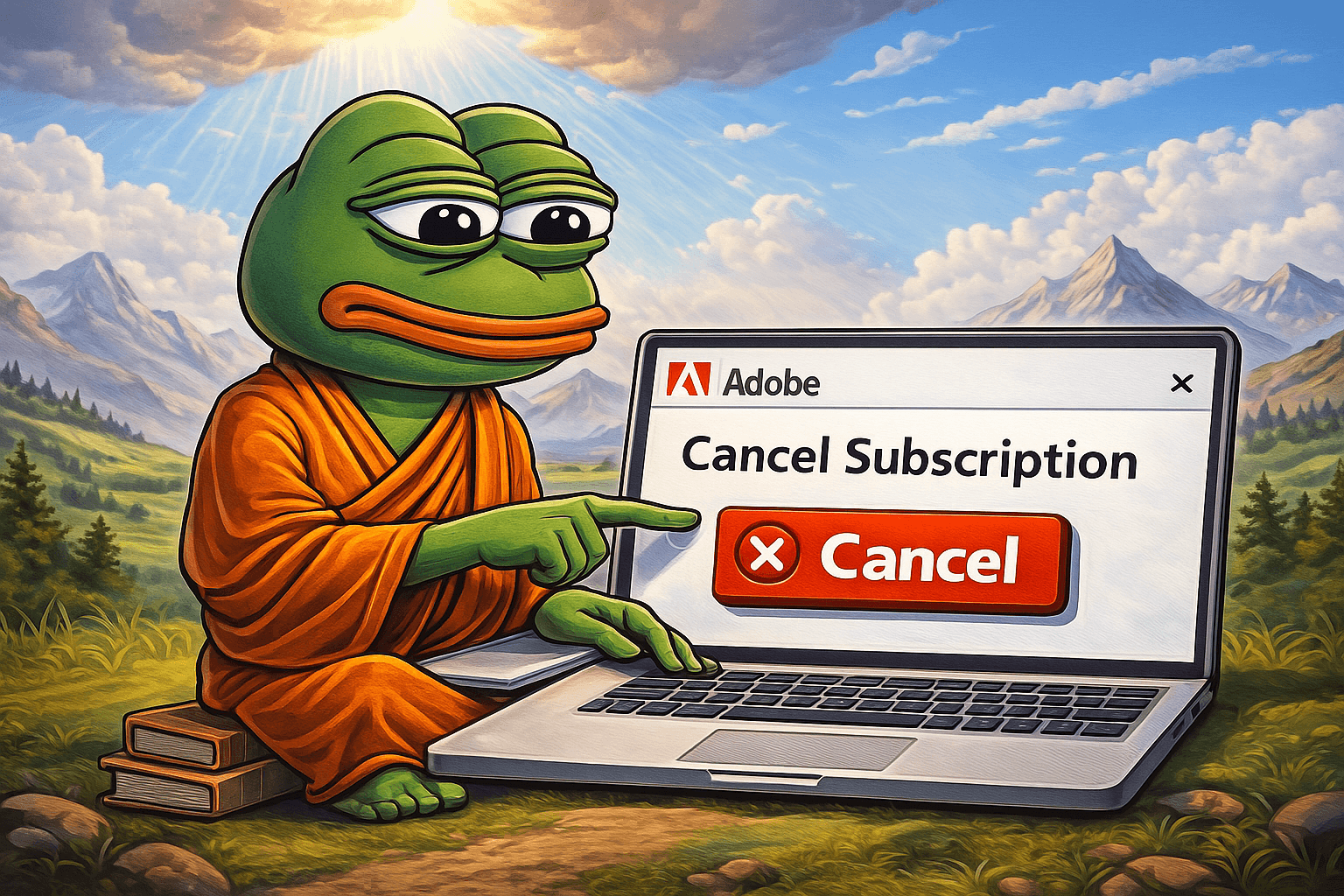
If you’re looking to cancel your Adobe subscription, this step-by-step guide walks you through the process with clarity. Whether you’re trying to reduce recurring payments, switch to a more affordable plan, or simply no longer use Creative Cloud, canceling doesn’t have to be a headache.
What’s Included in an Adobe Subscription
Adobe subscription usually includes access to Creative Cloud apps such as Photoshop, Illustrator, Premiere Pro, Adobe XD, and Acrobat. Most plans also come with cloud storage, frequent product updates, and support.
You can use your license on multiple devices, and with team plans, share access with team members under a single billing account. Knowing exactly what your membership includes helps you decide if canceling is the right move.
Common Reasons to Cancel Adobe Subscription
There are several reasons users choose to cancel Adobe:
High monthly or annual costs
Only needing one app, not the full Creative Cloud suite
Better alternatives like Figma, DaVinci Resolve, or GIMP
Confusing or outdated billing methods
Switching from personal to team-based accounts
Privacy or data storage concerns
No matter the reason, this guide helps you cancel with minimal friction.
What to Know Before You Cancel
1. Review Your Plan and Subscription Term
Check whether your Adobe subscription is monthly or annual. Canceling an annual plan early may lead to a cancellation fee, usually 50% of the remaining commitment.
Go to your Adobe account, find your plan under the “Plans” tab, and look at your subscription term and renewal date.
2. Understand Refund Rules
Adobe offers a full refund if you cancel within 14 days of purchase. If you cancel after that, you may only receive a partial refund or none at all.
Knowing the refund policy before canceling helps avoid surprises.
3. Check Billing and Payment Status
Before canceling, make sure your payment method is up to date. Failed charges or expired cards can lock you out of the cancellation process. Update billing details if needed.
Step-by-Step: How to Cancel Your Adobe Subscription
Here’s how to end your Adobe membership directly from your account:
Step 1: Sign In to Your Adobe Account
Visit adobe.com, click “Sign In,” and log in with the email linked to your Adobe subscription.
Step 2: Go to “Plans”
Navigate to the “Plans” tab from your profile menu. This section displays all current subscriptions, including Adobe Stock or any add-ons.
Step 3: Click “Manage Plan”
Select the plan you want to cancel. You’ll find billing info, next payment date, and a “Cancel Plan” option.
Step 4: Follow the Prompts
Adobe may ask why you’re cancelling and offer discounts or a downgraded plan. If you still want to cancel, click through to confirm.
Step 5: Confirm Cancellation
Your cancellation summary will show whether a fee applies and when your plan will end. Once confirmed, your membership enters termination status.
Special Cases for Canceling Adobe Services
Cancel Adobe Stock
If you added Adobe Stock to your plan, it must be canceled separately. Go to “Plans” and manage it like a standalone subscription.
Cancel Adobe Creative Cloud Only
If you’re subscribed to Adobe Creative Cloud and not using other services, you can cancel just that specific subscription.
Cancel Through a Reseller
If you bought your plan through a reseller or third party (like Amazon or your employer), you’ll need to contact them directly. Adobe cannot cancel these subscriptions on your behalf.
What Happens After You Cancel
Will You Lose Access to Apps?
Yes. You’ll lose access to premium apps after the end of your current billing cycle. However, your license stays valid until the plan officially ends.
What About Cloud Storage?
Once canceled, your cloud storage will drop to the free limit (around 2GB). If you’ve stored more, you’ll need to delete or download files before they’re removed.
Can You Still Use Free Services?
Some free Adobe services remain available after cancellation, including basic PDF viewing or tools with limited functionality.
Avoid Extra Charges When You Cancel
Cancel within 14 days of purchase to receive a full refund
Always update your payment method before attempting to cancel
Consider switching plans instead of canceling entirely — sometimes you can save by downgrading to a single app or photography plan
Alternatives to Adobe Plans
If you’re canceling to reduce costs or simplify your tools, here are some options:
Single-App Plans — Keep access to just one tool like Photoshop
Photography Plan — Affordable for Lightroom + Photoshop combo
Free Editing Tools — GIMP (image), DaVinci Resolve (video), Canva (design)
Pay-per-use tools — Ideal for infrequent users
Troubleshooting: Issues with Cancellation
If you’re unable to cancel your Adobe subscription, here’s what might be wrong:
Expired card — Update billing info
Reseller lock-in — You’ll need to contact the reseller
Locked account — Reach out to Adobe Support
Team members conflict — Some licenses for teams may require admin action to cancel
Contact Adobe Support
If you’re still stuck, visit the Adobe Help Center to chat or call their support team.
FAQs
Can I cancel Adobe subscription anytime?
Yes, but an early cancellation fee may apply for annual plans.
Will I get a refund after canceling?
Only if canceled within 14 days of purchase.
Do I lose cloud storage after cancellation?
Your cloud storage drops to the free tier. Download files if you’re over the limit.
Can I cancel without logging into my Adobe account?
No, cancellation must be done inside your Adobe account.
What happens to my license?
Your license ends after your current billing cycle, unless you canceled within 14 days.
Final Thoughts
Canceling an Adobe subscription is straightforward once you understand the process. Review your plan type, check for refund eligibility, and follow the guide to avoid unnecessary fees or data loss. If you’re unsure about canceling completely, explore lower-cost plans or free alternatives.